How to scout with Scouty
Scouty is for scouting in real time and giving the coach information in real time: that is why you only scout your own team. Here is everything you need, from the roster to the report, with the coach’s Home, the gym (Coach) and the players’ notebook. It takes ten minutes to learn; to try it without signing up there is the demo, with “New scout (DEMO)” and “Random six”.
The app is being translated into English: some screens and screenshots may still be in Italian.
Before the match
When you sign up you choose how you use Scouty: Coach, if you coach one or more teams on your own (no club needed), or Club, with its name, for more teams and more coaches. Change it whenever you like in Manage › My space (or Manage › Club): teams, matches and users stay where they are.
In Manage › Teams you create the team and set it up item by item; the main ones:
- Name and colour: the colour of the shirts, which you see while scouting and on the score.
- Players: shirt number, name (even just a nickname) and role: P setter, B outside hitter, C middle blocker, O opposite, L libero. The shirt number keeps the season stats together even if you change the name.
- Leagues: at least one (for example “Under 15”): you need it to start a match and to filter the season stats.
- Team targets: the team’s thresholds (serve, attack, reception, side-out, break…). The stats and the PDF turn green when you beat them.
- Training: days and times. Coach, the players’ calendar and the reminders use them.
- The other items: Customise court, Game system and tactics, Athletes’ notebook (who has access, see below) and Team page.
In Manage › Users you invite people by email and choose their role: coach and scoutman see stats and the archive and manage users, scout only scouts. In Manage › Club you set the name and the logo. Each person picks the app language in their settings.
The coach’s Home
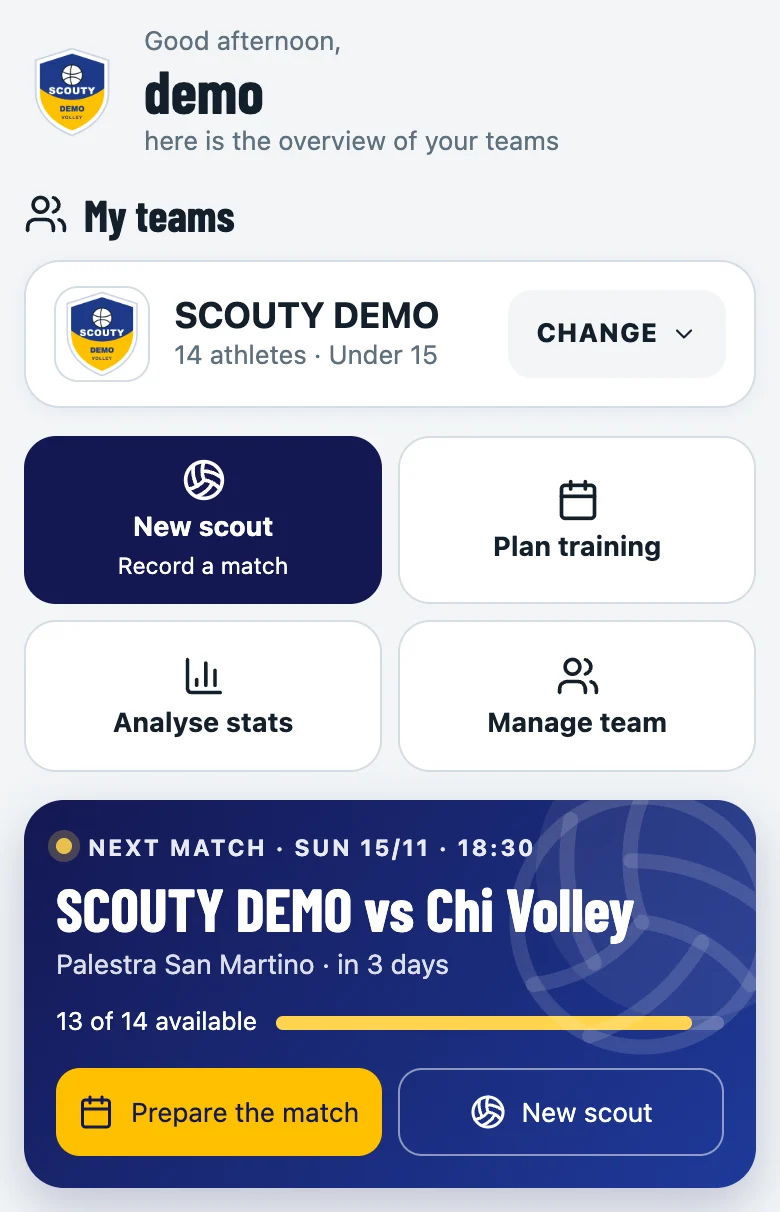
For coaches, the first tab at the bottom is the Home: the week at a glance on one page. From the top:
- My teams: the team you are working on, with its logo; Change switches to another one.
- Four quick actions: New scout, Plan training, Analyse stats, Manage team.
- The next match, with how many are available, Prepare the match and New scout. If a match is live, you find it here instead with Resume scout, or Take control if another phone is scouting it.
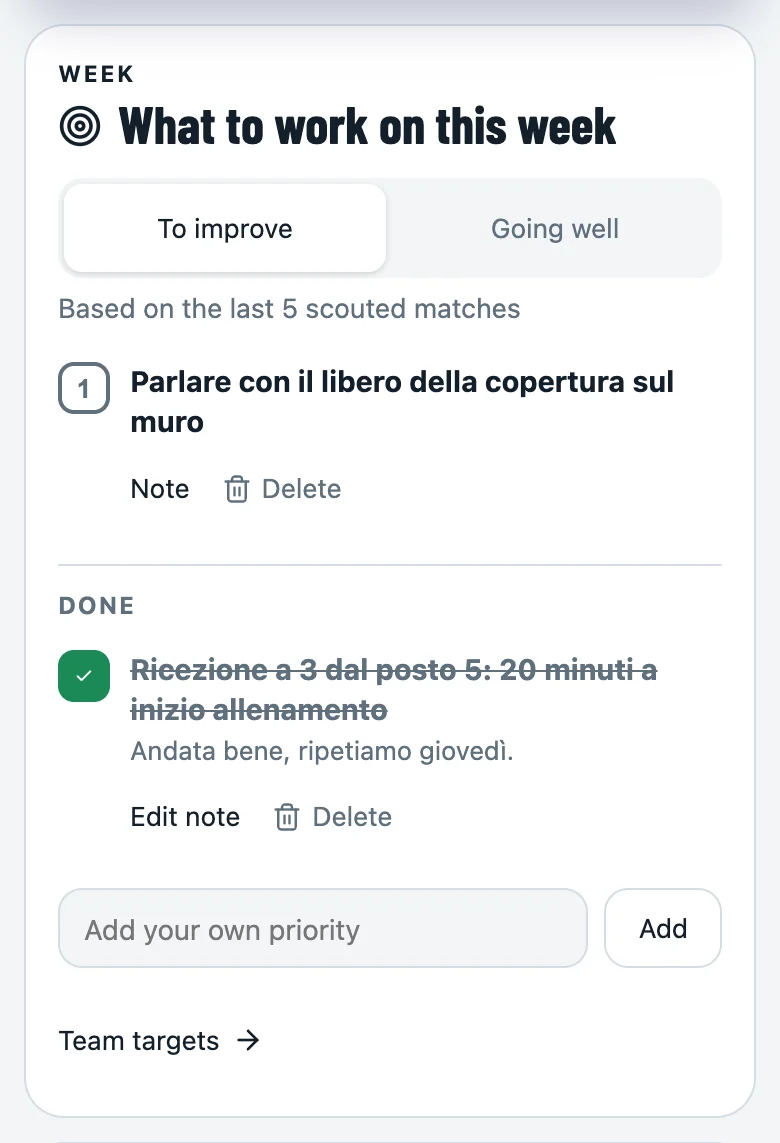
- What to work on this week: the points below target in the last 5 scouted matches (To improve) and the ones going well (Going well). Add your own priorities, with a note, and tick them off when done. It is worked out again only with a new match or changed targets.
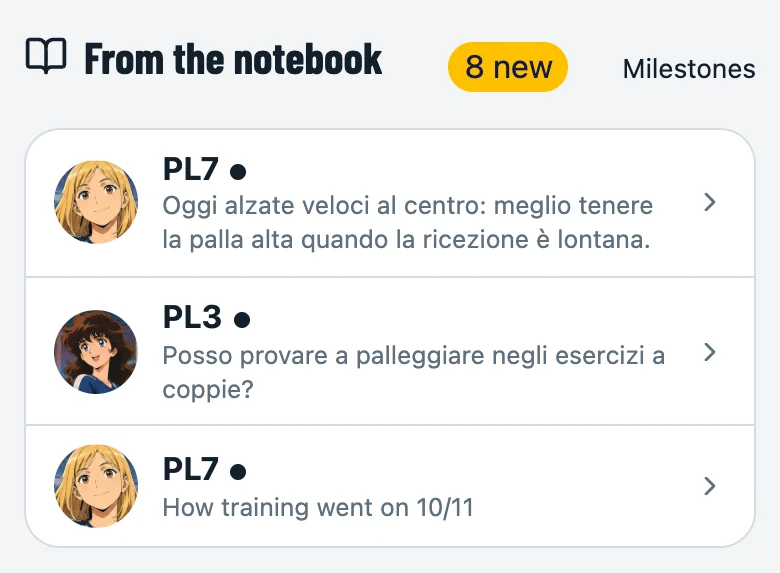
Below: Team performance (side-out, reception, attack and serve errors over the last 5 matches), the results trend, the athletes under the lens (who is rising, who needs watching), the Overview with the MVP of the last match voted by the players and the new achievements, then From the notebook (what they wrote last), the next fixtures and the Latest club matches (every team you see, with sets; with a single team Latest matches), which open in Stats, with the link to the club page. On a computer the Home has two columns.
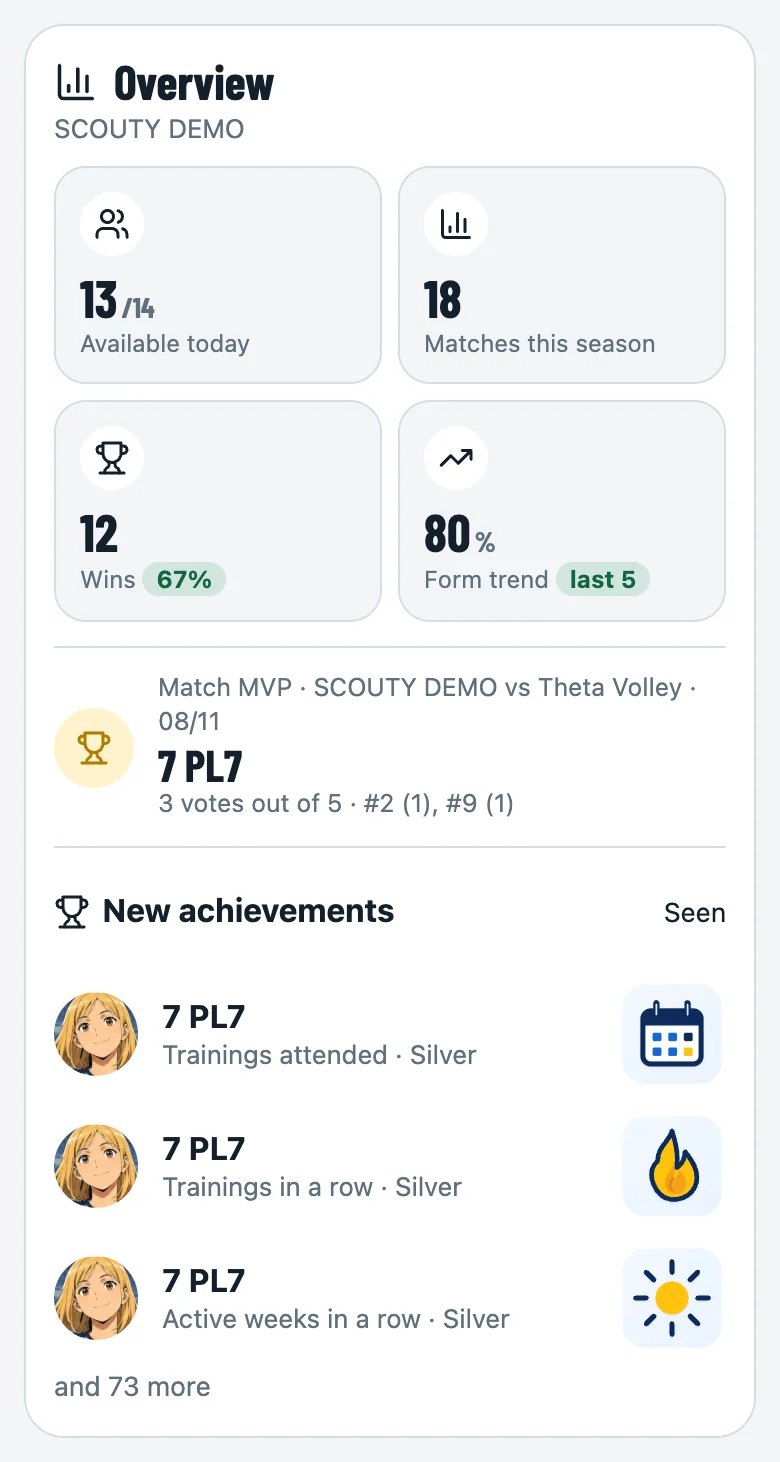
Scoutmen and scouts have no Home: the Scout page opens for them. Players have their notebook.
New scout
On the Scout page tap New scout, choose the team and the league, type the opponent’s name, then Start match. Each team can have only one live match, but different teams can play at the same time, each with its own scout.
At training
Scouty is handy in the gym too, during the week: a phone or tablet by the court is enough. With Club you find everything on the Scout page, under “New scout”, in At training; the training scouting you did is in Coach › Today. Training numbers stay in the Training view: Stats and the season are for official matches only.
- Scoreboard (Club): just the score of 6 v 6, handy for the coach; with “Full screen” the screen becomes two big halves, A and B, and you tap the half of whoever wins the point. Type the names of the two teams (or keep A and B), choose sets to 25, to 15, to your own number (say 7) or with no limit, with or without win by 2, and tap the +1 of whoever scores: no players to enter. The set ends by itself; End set asks who wins it and awards it even on a tie. Set score types the set score by hand, Reset starts again from 0–0, Names and rules changes names and points even after the start, “Undo last” removes the last thing you did. It also works as a plain scoreboard for friendly games and house rules.
- Training scouting (Club): first choose who you scout. One team: scouting as in a match, only for your players, and for the other side you only mark the points. Both teams, A against B: it is match scouting, with both teams being yours. Choose the team, split the players into A and B (today’s present players are offered, “Shuffle” splits them by role), then for each set the line-ups of A and B on the court and who serves first. During the rally the court turns by itself towards whoever has the ball: A serves, the court moves to B for reception and attack, then back to A, and so on (the A and B buttons at the top turn it by hand). Points, rotations, substitutions and liberos count for each team; each team has its own colour (from the name: Blu, Rosse, Verdi…; otherwise A blue and B red). Two modes: With serve (rotations as in a match) or Free ball (no serve and no rotations, fixed sixes: at each rally you tap the team receiving the ball). Liberos are optional, and a libero can belong to both teams: they always play with the receiving team. The stats are in Stats › Team › Training, for team A or B, and never enter the season.
- Game rules (training scouting, one or both teams): before the line-ups choose As in a match or My rules. With your rules you decide how many points a rally is worth by the action that ends it (0 to 9: ace, attack kill and kill block to the team that does it; serve, attack and reception errors, faults and other errors to the other team; for example an attack error gives the opponents 2 points), the points of a set and of the last set (7, 15, 25 or whatever you like), best of 3 or 5 and whether you need to win by 2. A rally is still a rally: rotation, side-out, break and stats stay the same; only the score changes, and you see it the same on the scoreboard, in the Live and in the archive. “Undo last” removes exactly the points that rally gave.
- Scoreboard and training scouting stay live until you end them: you find them at the top of the Scout page, among the live matches, with “Resume” and “End”. The back arrow takes you back to where you started. Once ended, the Scoreboard leaves no history.
Prefer full scouting, with rotations and the official score? Create a Training league in the team and use “New scout” as in a match: in the season stats the league filter keeps training and matches apart.
Line-up
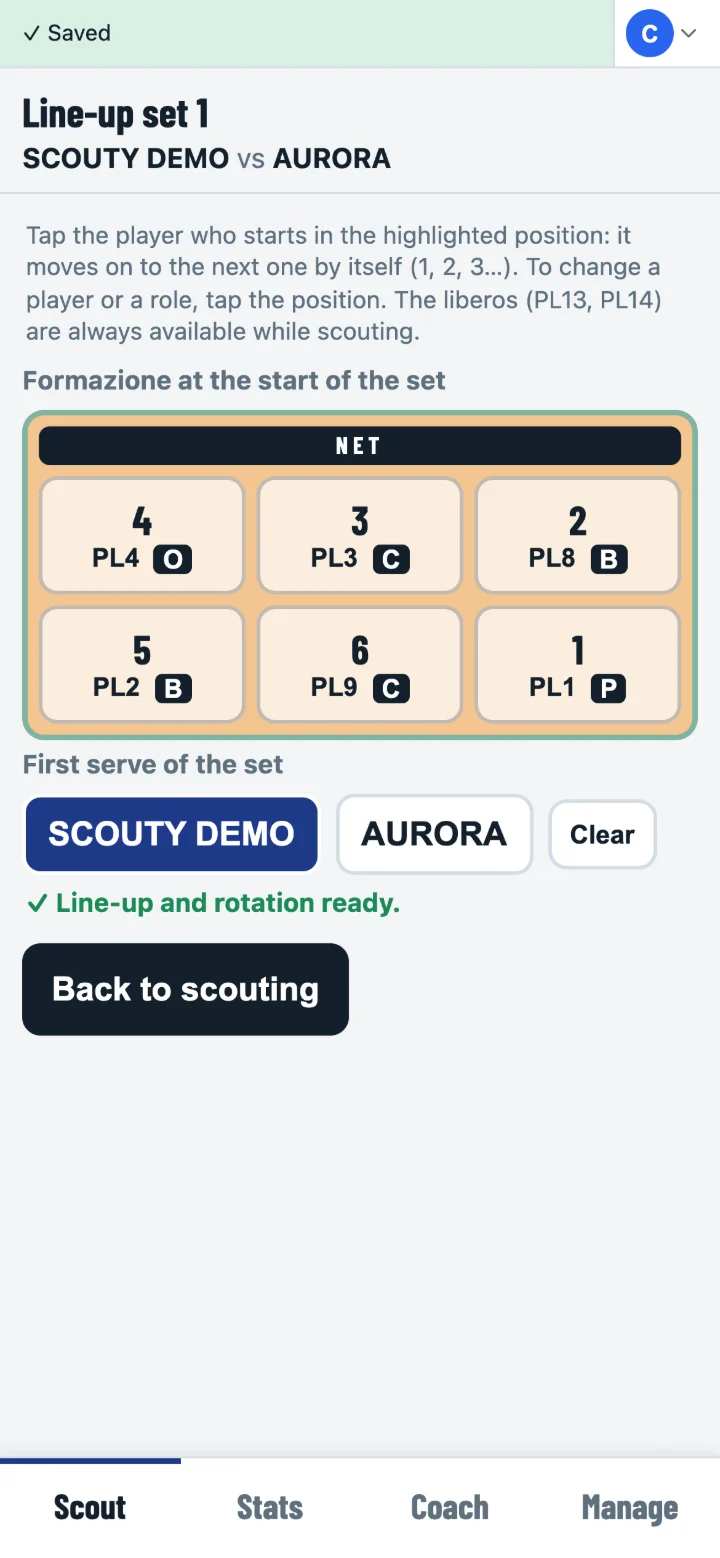
You build the line-up right on the court:
- tap a position (1–6), then the player who starts there;
- it moves on to the next position by itself (1, 2, 3…): the role is the one in the roster, or the one expected in that position; to change it, tap the position;
- with the Rotate the six arrows you move everyone by one position;
- choose who has the first serve and tap Start set.
If a role does not match the position (for example a middle blocker placed opposite the setter, where the opposite goes) the role letter turns orange and a line under the court says who and where: tap that position and choose the right role, so the Court view puts everyone in their real positions.
Liberos are not placed on court: they are always available while scouting; with no libero, the middle blocker receives in the back row in their place. From the second set Scouty suggests the line-up of the set before, with the serve to the other team.
Standard and Expert
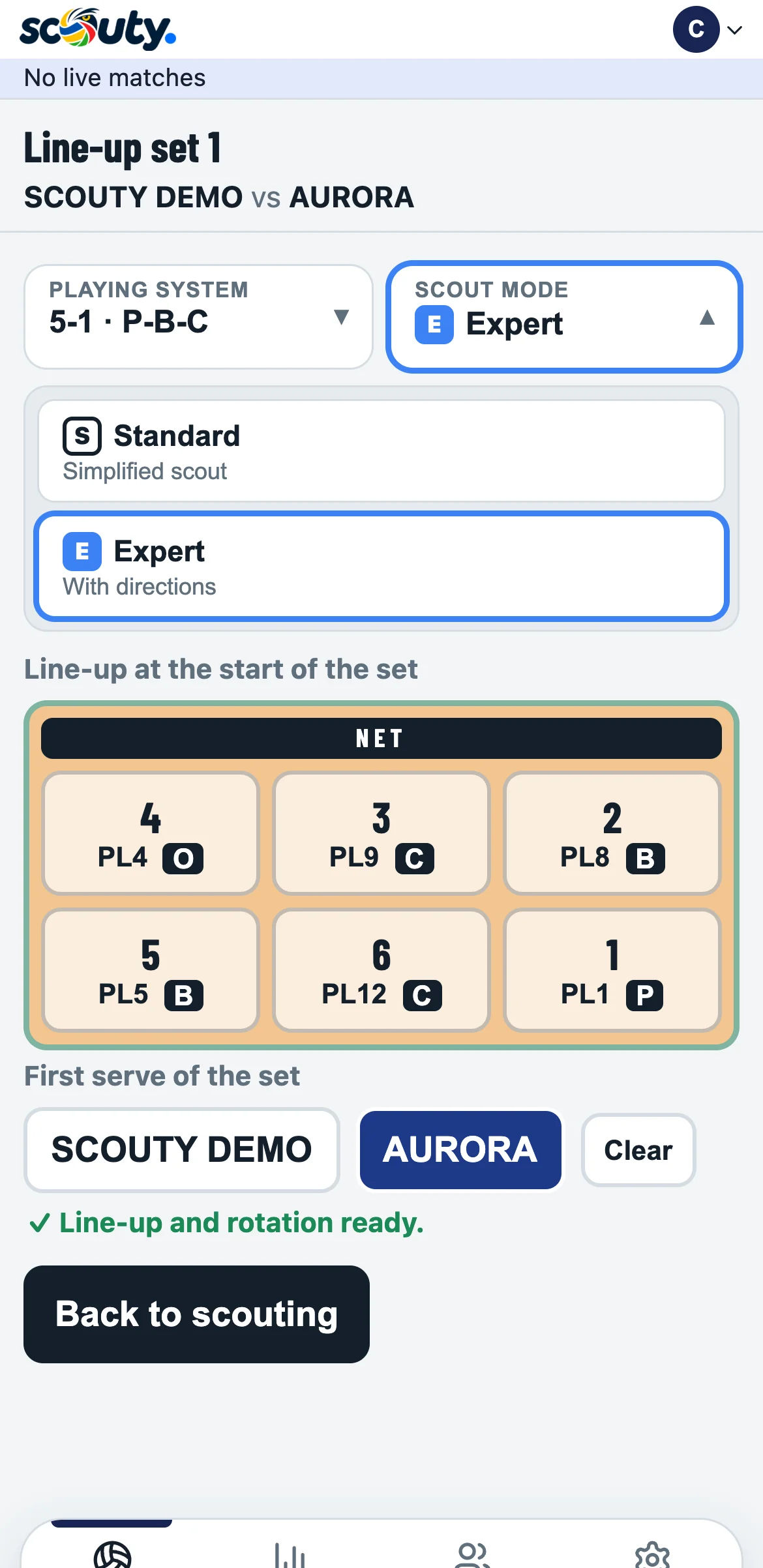
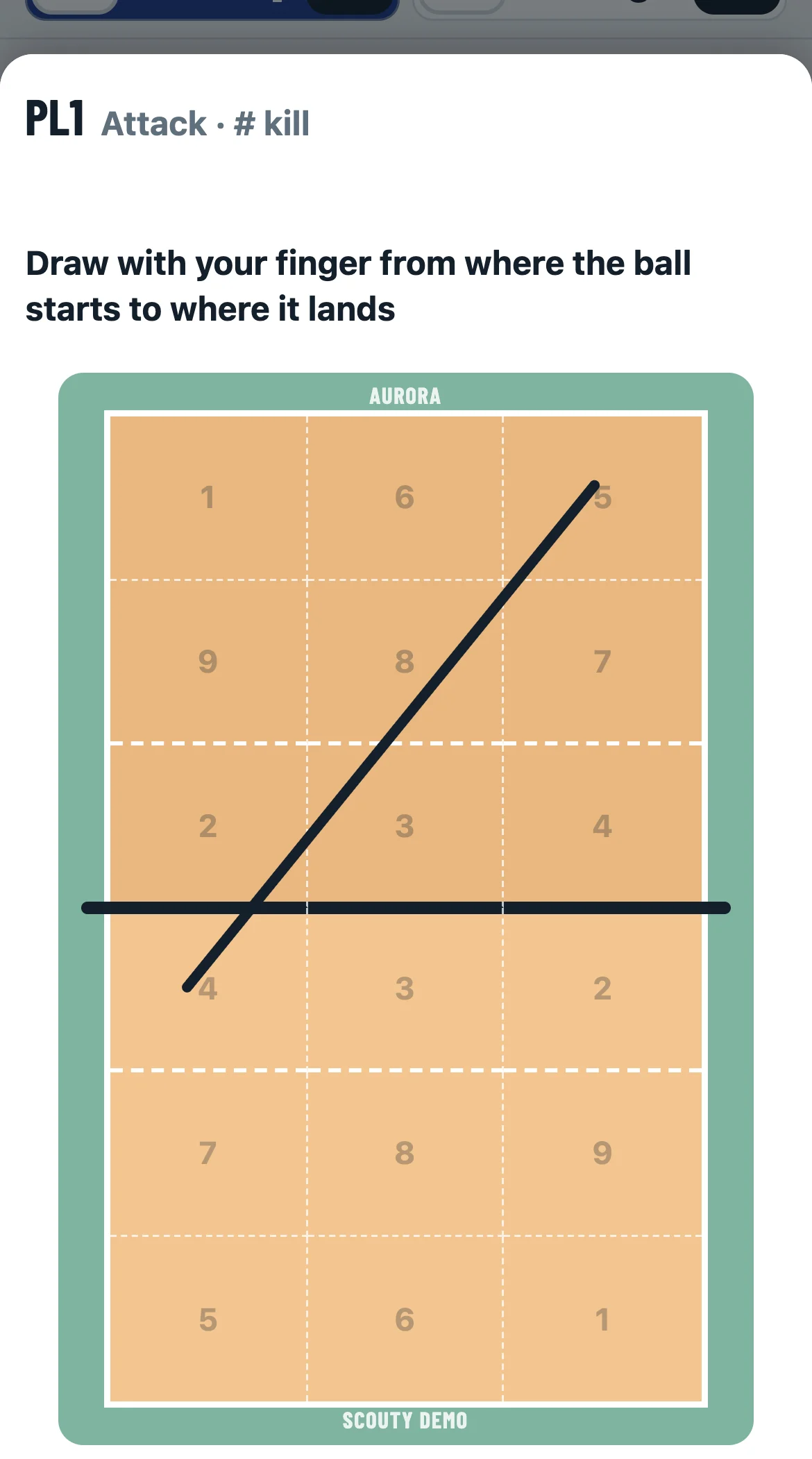
Scouting has two modes, for everyone, free included:
- Standard (S): simplified scouting, player and outcome. It is the default.
- Expert (E): on top of that, after every serve and every attack the full court opens, split into the 9 dashed zones of classic scouting, and you draw with your finger where the ball starts and where it lands. A 10-second timer runs at the top: if you draw nothing, or tap Skip, scouting goes on without a line.
Choose it in the line-up, with Scout mode next to Playing system, or at the bottom of the scout. Scouty remembers it for your account. The letter S or E always sits on the right of the net bar, so you know which mode you are in.

Player and outcome
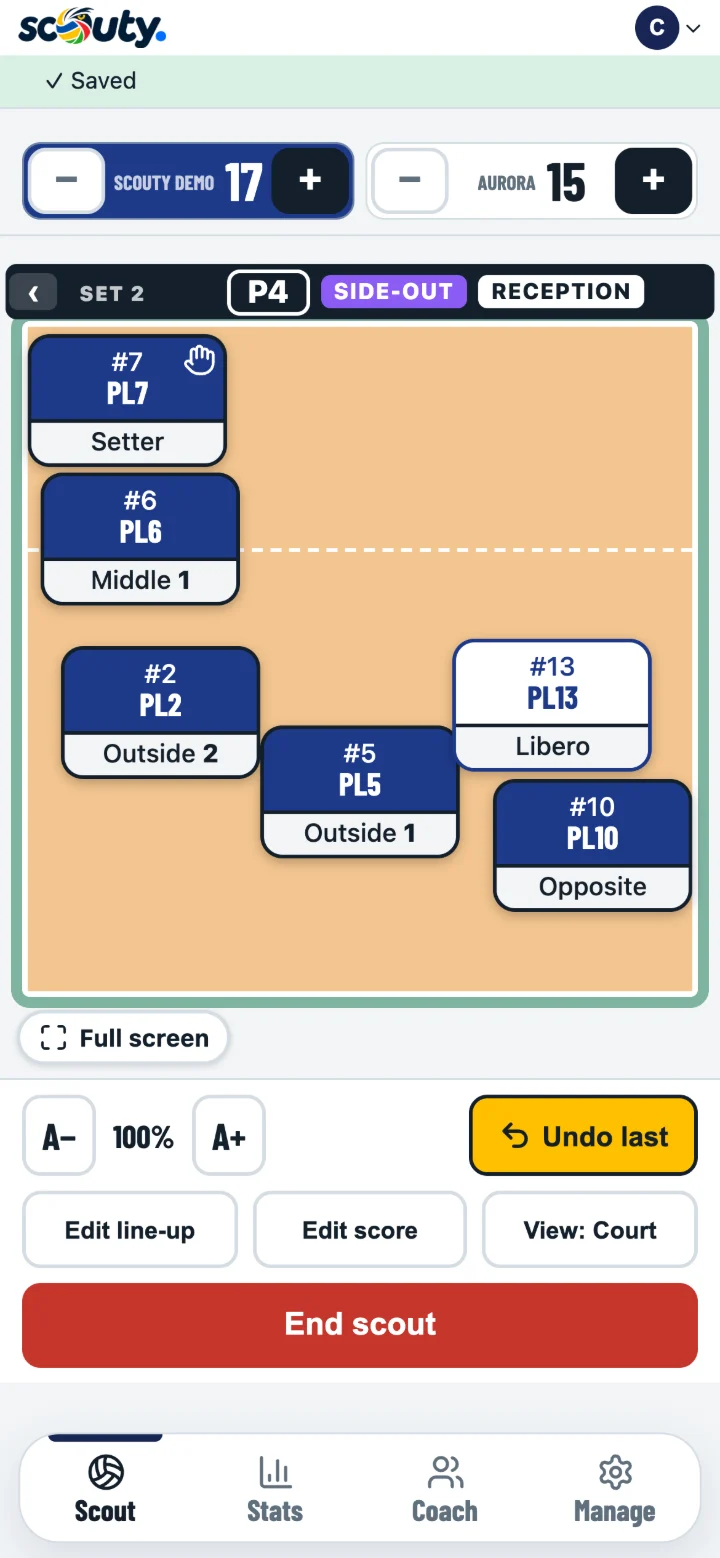
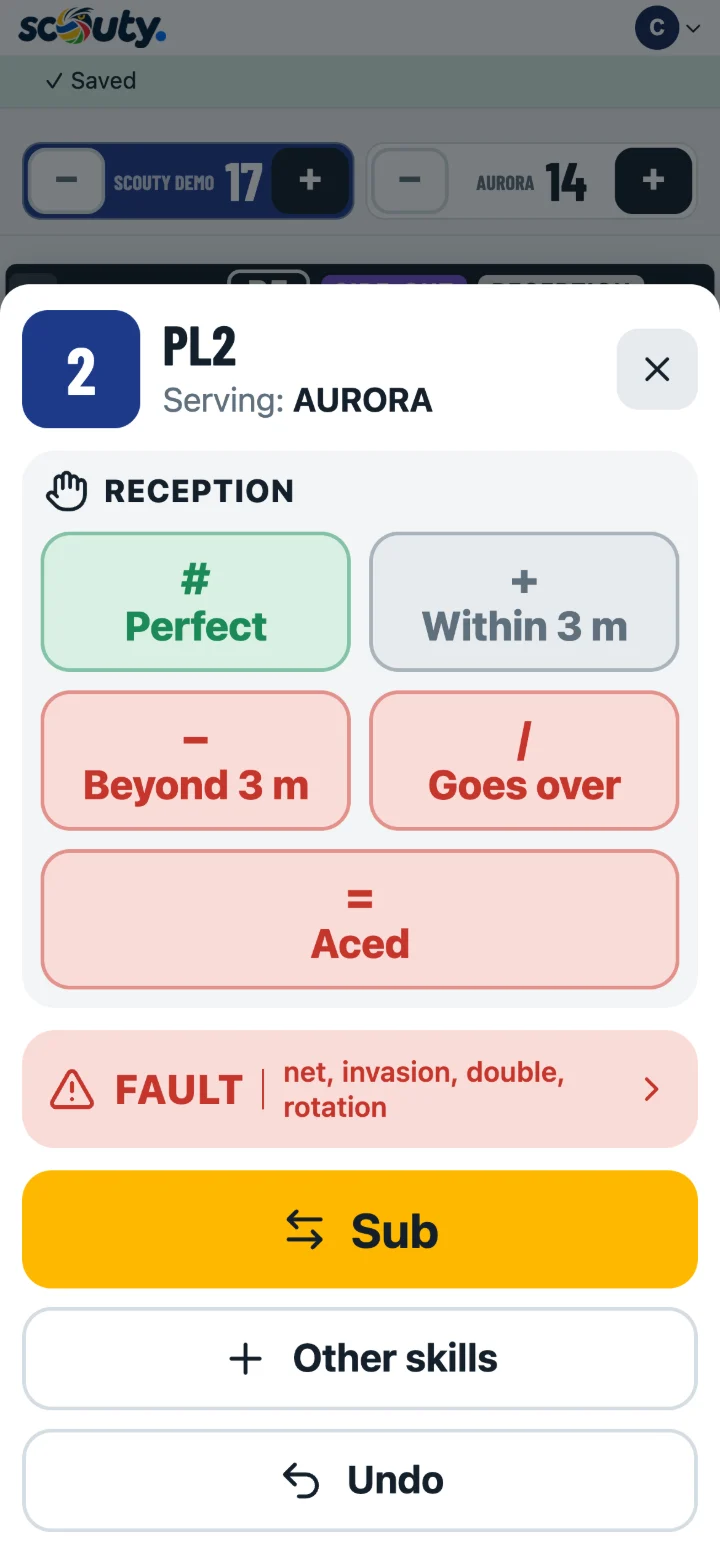
During the rally tap the player who played the ball and, in the sheet that opens, the outcome. Scouty knows who serves and what phase the rally is in, and offers only the possible skills:
- when we serve, only the server lights up (the others are dimmed);
- when they serve, the reception;
- after a good reception or dig of ours, the attack; when the ball is on their side, block and dig.
If you need something else, + Other skills shows everything. The fault (net, invasion, double, rotation) is always there. Above the court, on the net bar, you see the set, the rotation in big letters (P1–P6), Break (yellow: your team serves) or Side-out (purple: they serve) and the phase of the rally: serve, reception, attack or defence. You find the same colours in the Stats.
The Court view puts the players in their real positions: in reception, on serve, in attack and in defence, with the libero replacing the middle blocker in the back row. When the ball goes over, the players move to defence and the back-row setter drops back, slightly ahead of the others: you see them at once and tap them to record the dig. Each token shows number and name in the team colour and the role below, with 1 and 2 for the outsides and the middles (1 for the one next to the setter); the setter has a hand in the corner.
Full screen, under the corner of the court: only the score, the court and Undo last remain, the court stretches to the bottom and the tokens get bigger. The same button (Exit) brings everything back.
Outcome table
Outcomes use DataVolley symbols: # the best, = the error. Here is what each button means.
| Serve | Meaning | |
|---|---|---|
| ace | # | direct point |
| positive | + | opponent reception in trouble, no point |
| in play | ! | ball in play |
| error | = | their point |
| Reception | Meaning | |
|---|---|---|
| perfect | # | perfect ball for the setter |
| within 3 m | + | settable within 3 metres |
| beyond 3 m | − | beyond 3 metres (not an error) |
| goes over | / | goes straight into the opponent’s court: no point, the ball is theirs |
| aced | = | reception error, their point |
| Attack | Meaning | |
|---|---|---|
| kill | # | our point |
| dug or replayed | ! | the rally goes on |
| error or blocked | = | their point |
| Block | Meaning | |
|---|---|---|
| block point | # | our point |
| touch | ! | touch with no outcome |
| block used | = | their point |
| Dig | Meaning | |
|---|---|---|
| good | # | good for the setter |
| within 3 m | + | settable within 3 metres |
| beyond 3 m | − | beyond 3 metres |
| goes over | / | goes straight into the opponent’s court |
Setting
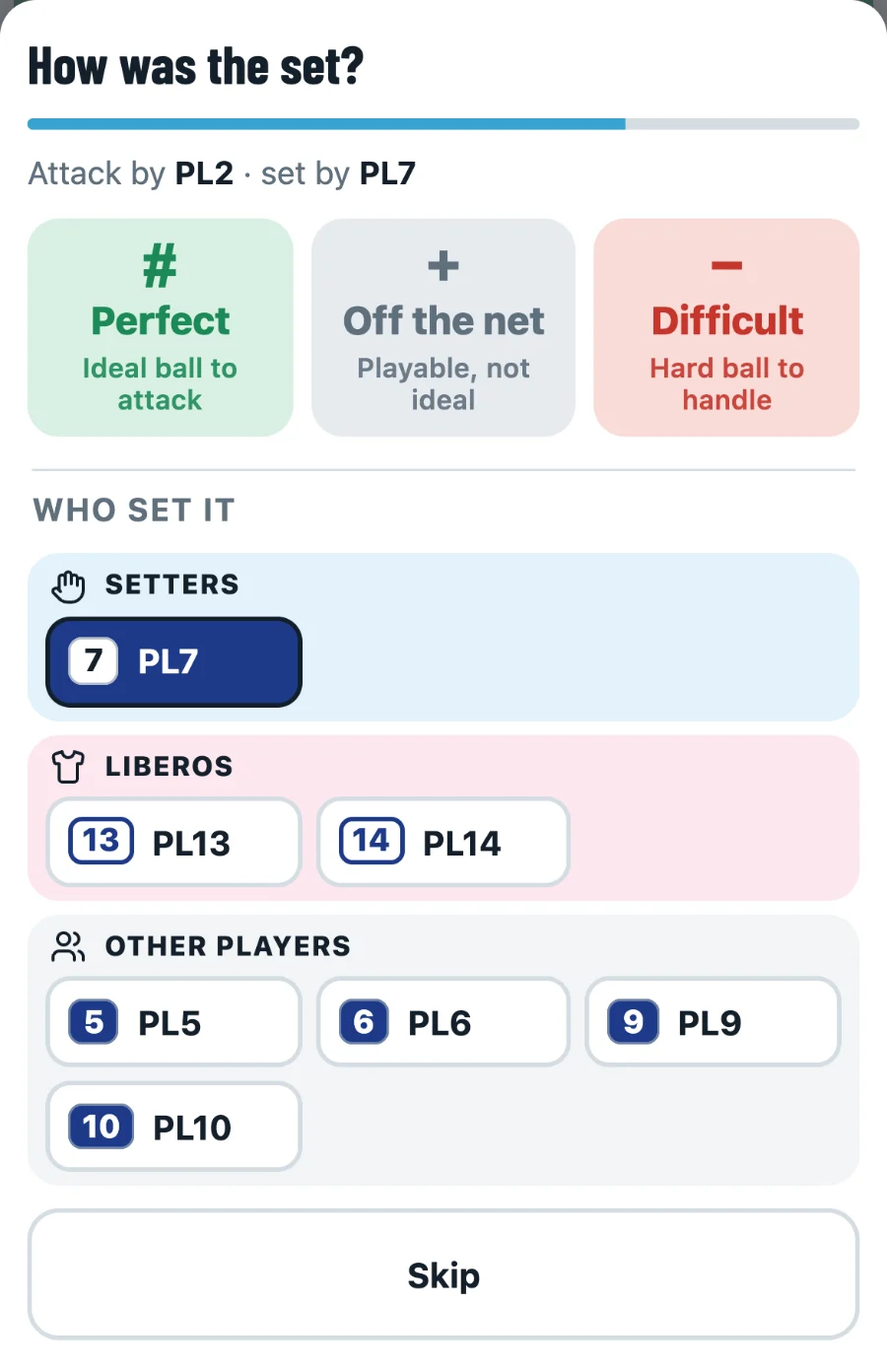
After every attack (not by the setter) Scouty asks how good the set was: on top, big, # perfect, + off the net, − difficult; below, smaller, who set it, grouped into setters, liberos and others. The setter on court is already selected; if someone else set, tap them. If you don’t care, Skip. The point of the attack arrives when you close this sheet.
If the setter has just passed or dug the ball, she cannot be the one setting: Scouty suggests the libero, or the back-row middle, and the setter cannot be picked.
Score and corrections
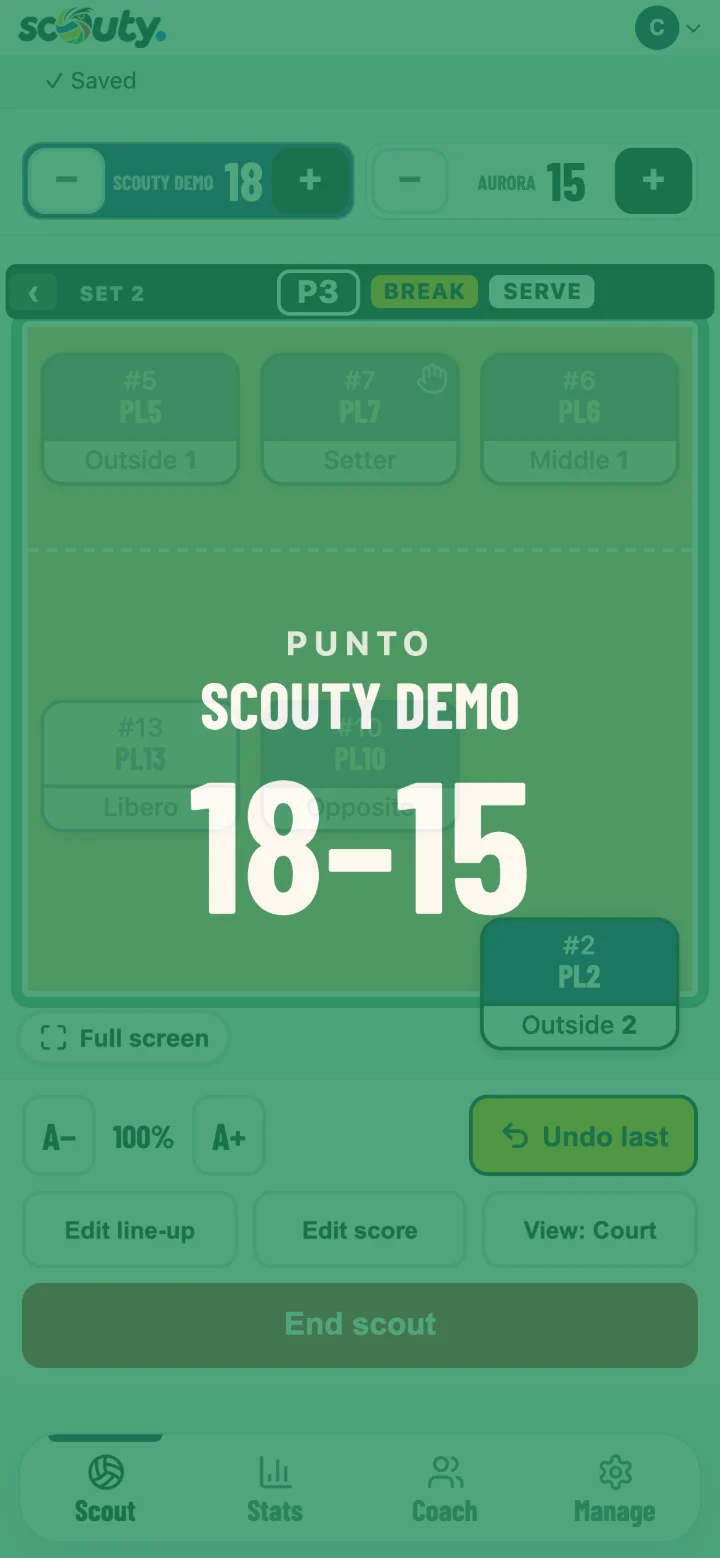
- Every point shows as a green (ours) or red (theirs) flash with the score: scouting carries on while it is on screen.
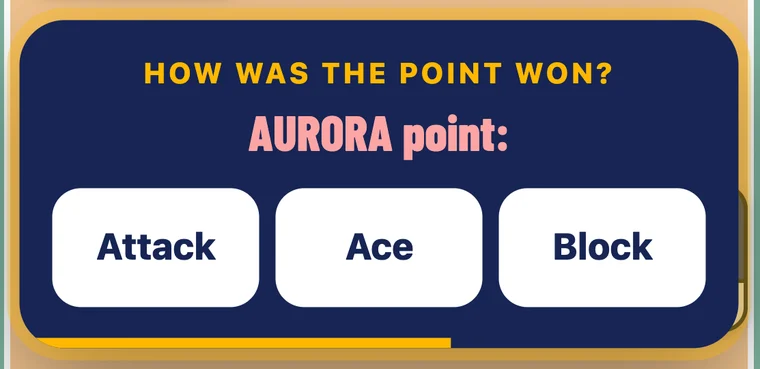
- + and − on the score add or remove a point by hand. After +, How was the point won? appears in the middle of the screen for 10 seconds: for their point Attack, Ace or Block; for our point (their error) Serve err., Attack err. or Fault (setting, net, position). It only offers what can have happened: ace and serve error only when the team that erred was serving and the rally is empty, no block right after our serve. It is optional: if you tap nothing the point stays as it is. You find it in the stats.
- Undo last removes the last recorded action, with its point.
- Edit score brings the set to the official scoreboard when you missed something: corrections count for the score and the rotation but do not enter the stats. No need to invent errors to fix the score.
- A− / A+ make everything smaller or bigger, per phone.
Substitutions and libero
In a player’s sheet tap ⇄ Substitution and choose who comes in. Scouty follows the rules: it counts the substitutions in the set, a pair can swap at most twice and a player coming back can only replace the one who had replaced them. “Undo substitution” fixes a wrong one while it is still the last.
The libero comes in by herself in the back row in place of the middle blocker (except when the middle is serving). With two liberos, tap Swap with in the libero’s sheet to bring in the other one.
End of set and match
A set ends at 25 (15 in the fifth) with a two-point lead: Scouty shows it full screen with the score and the sets won. Then tap Line-up set… and prepare the next set. At the third set won by either team the match goes to the archive by itself.
End scout (two taps) lets you leave without archiving: the match stays among the Live matches and you resume it whenever you like, from another phone too.
Several people
A match is scouted by one person at a time: the others watch it live, read-only, with Stats updating by themselves. If the scout has to stop (battery, network), a coach or scoutman taps Take control and carries on from where they left off. If the signal comes and goes nothing is lost: actions stay on the phone and are sent as soon as the network is back.
Several teams: which one you are looking at
If you follow more than one team, at the top next to your plan you find the name of the active team. It is the team you are working on right now.
- Home, Coach and Stats show the active team: roster, attendance, training, season numbers.
- To change it tap the name at the top and choose another team. The choice stays the next time you log in.
- In Today you can choose “All teams” to see everyone’s schedule together.
- While scouting the team cannot be changed: it is the team of the match. It is free again when the match is closed.
- Manage › Teams always lists them all, whichever one is active.
With a single team you see none of this: at the top there are just plan, notices and profile.
Live
While scouting, in the bottom bar, Live opens the phone’s share sheet: send the link to whoever is not in the gym (usually the parents’ group) and they follow the match in real time, no app and no account. They see the scoreboard with sets and points, the court with who serves and the six on court (shirt number and role, moving between serve, reception and play as in the app), the score trend set by set, the longest run and the rotation. Never the names of the roster. The link is short, the club code and four letters (for example app.scoutyapp.it/POLIVOLLEY/d/kxwt), and it closes one hour after the match ends. Live is only for matches, not for training sessions, and comes with Club. When the match is over, Share the result creates an image with the result, sets and the team’s numbers.
Team page
Every team has a fixed link to send to parents, fans and staff (for example in the parents’ group), already on: there is nothing to turn on. It is short, the club code and four letters: for example app.scoutyapp.it/POLIVOLLEY/t/mhzd. Whoever opens it, with no app and no account, sees the upcoming fixtures, the match in progress with the button to the live page, results with sets and announcements. Never the players’ names. It comes with Scouty Club.
You find it in Manage › Teams › the team › Team page: Copy link and Share send it, + Announcement writes a notice (up to 280 characters, the page shows the last 5), Change link makes a new one (the old one stops working), Close the page turns it off. Links already sent keep working.
Club page
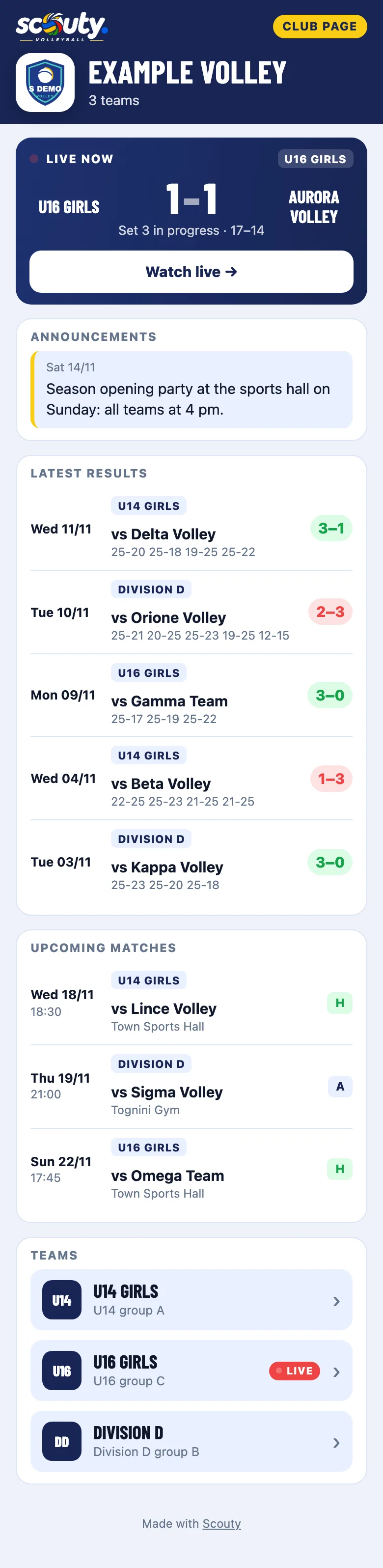
One link for the whole club, already on (for example app.scoutyapp.it/POLIVOLLEY/c/bnwe): every team whose page is on, in one place. Whoever opens it sees the club’s logo and name and, in this order:
- matches live now, with the score: a tap opens the live page;
- announcements to all teams;
- latest results and upcoming matches, with the team’s name;
- the teams: a tap opens their page.
You open the link from Home, under Latest club matches, and also in Manage › Club (or My space): Copy link, Share and Open. Every team page and the live page also lead here.
In Preferences › Club (or My space, for coach mode) whoever runs the club turns it off or on again, copies the link and with Change key makes a new one: the old one stops working. There you also write announcements to all teams, with an end date if you like: they show here and on every team page, marked “From the club”. Never the players’ names. It comes with Scouty Club.
Coach: Today, Athletes, Calendar
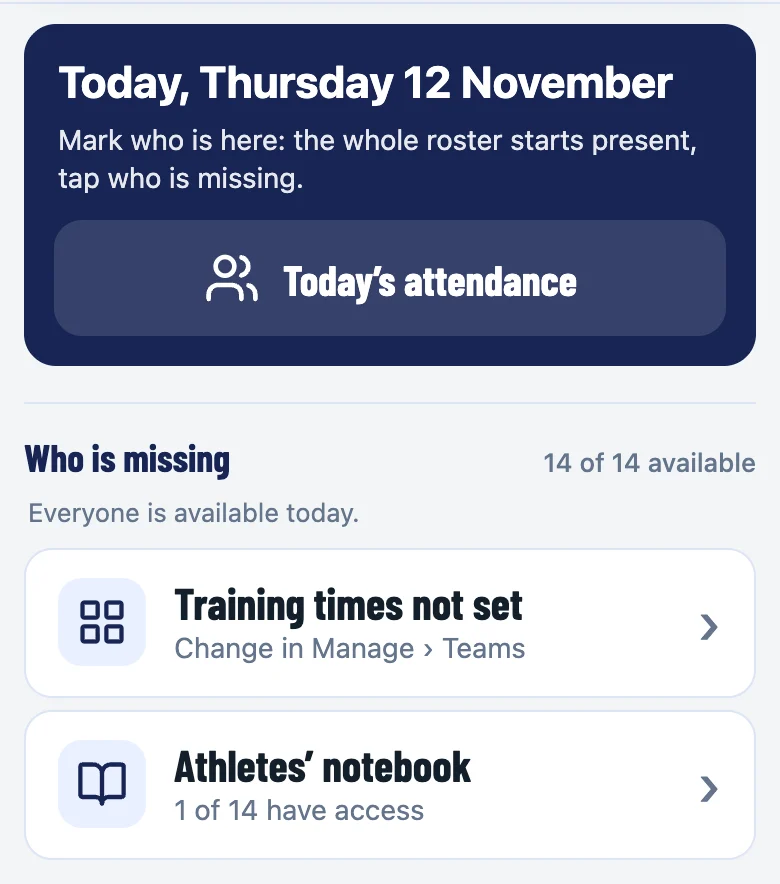
At the bottom you find Home, Scout, Stats, Coach and Manage. Coach is the gym: it is for the coach and scoutman, with Club, and has three tabs.
- Today: Today’s attendance and, below, how the players feel after the last training (the stars from the notebook). Then Who is missing (who said “I can’t make it”, injuries, who hasn’t answered yet), the training times, the Athletes’ notebook, the next match with Prepare the match, the week and the month calendar with training and matches. Tap a day to see its activities: attendance, match, training scouting.
- Athletes: a card for each player (availability, role, attendance at the last 5 trainings, sets in the last 5 matches, form arrow, open goals), with the filters Out, To watch, Rising and Dropping. Below, the team numbers and the Attendance history.
- Calendar: the team’s official matches, by league, with the numbers (matches, home, away, won and lost) and the list month by month; tap a match to change it (date, time, home or away, opponent, gym, league, round, result), + Match adds one. Import reads the league file as you download it from the federation (CSV or Excel .xlsx): pick your team in the file, check the preview and save. With a paid Club subscription artificial intelligence sorts the file out (at most 3 times a day per team), suggests the league, recognises your team and flags the doubtful rows. The result of scouted matches comes from the scout by itself. With a subscription the calendar list also has Ask the calendar: questions and changes in plain words (“how many away games in November?”, “move the 20/12 match to 4 pm”), up to 5 a day per team; changes undo with a tap.
Attendance: everyone is already present, you only mark who is missing and, if you like, why. Each day stands on its own: when you change day (with the week at the top or the date) only that day opens, or a new one with everyone present, which counts only once you tap something or press Save day. The button at the bottom always says whether the day is saved (green, with the time) or not (red: tap to retry). A past day opens as a summary, and “Edit attendance” reopens the list. The Attendance history is in Coach › Athletes, latest day first.
The player’s card (one tap on the card): photo (taken, from the gallery or one of 36 characters), availability (injured or unavailable until a date: they start as absent in attendance) and three tabs. Numbers: the skills of their role over the last 5 matches and, with See the numbers, the full card (season, milestones, profile against teammates in the same role, training and match). Work: the goals, also with a number to reach, the coach notes (only coaches see them, never the player or the scoutman) and the notebook invitation. Attendance: the latest, with the reasons for absences.
Main role (P setter, O opposite, B outside hitter, C middle blocker, L libero): choose it in the card or in the roster (Manage › Teams › Players). The line-up suggests it, but in a match or a training you can give a player another role just for that time: the roster does not change.
The player’s notebook
With Club every player can sign in to Scouty with their email and have their own notebook. They only see themselves and their team: never plans, prices or teammates’ stats.
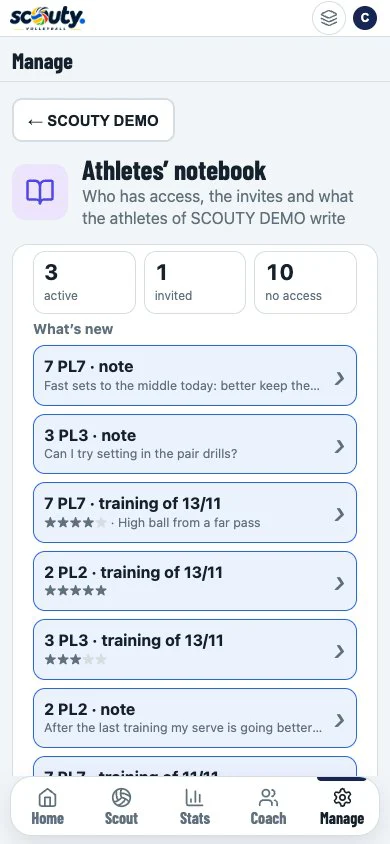
For the coach. You give access from the player’s card (Work › Invite, with their email; if they are a minor you confirm you have the parents’ consent) or from the Athletes’ notebook page (from Coach › Today, or from Manage › Teams), which shows who has access, who is invited and what they wrote since you last looked. When a player writes, a dot appears on Coach and a notice in the bell. See it as the player does opens their card the way they see it.
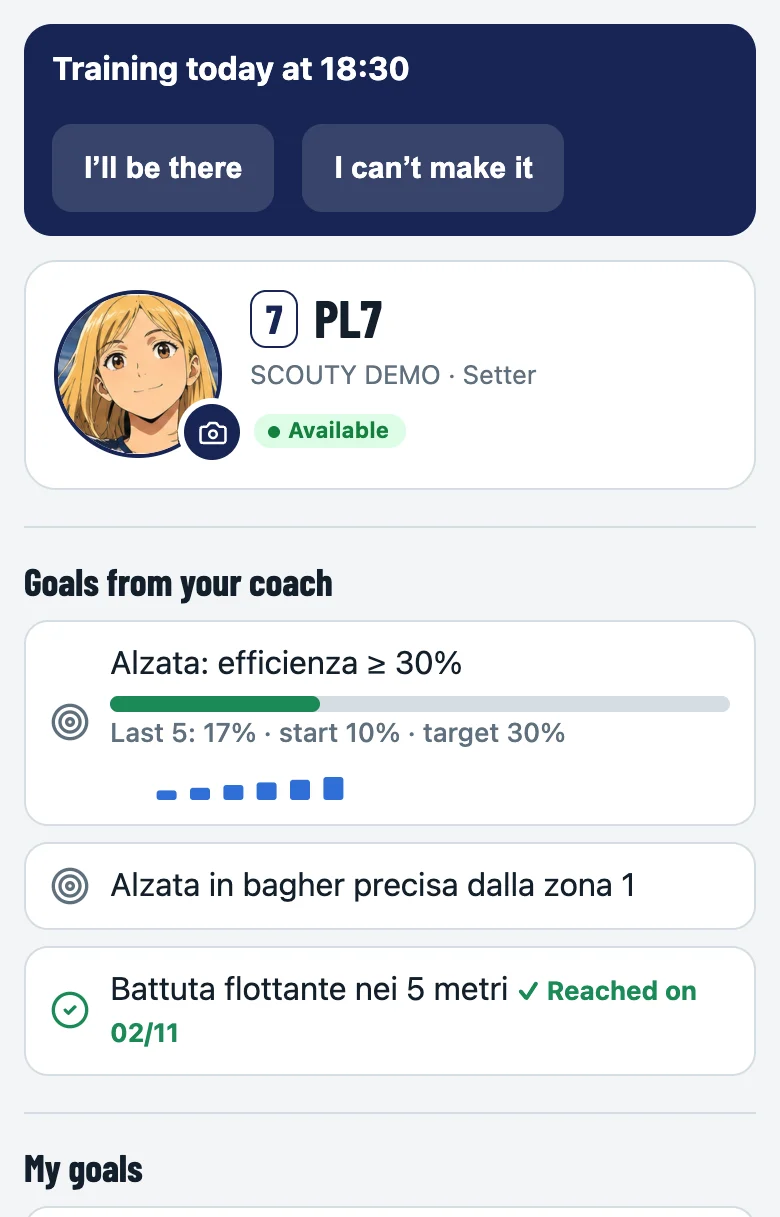
For the player, four tabs at the bottom:
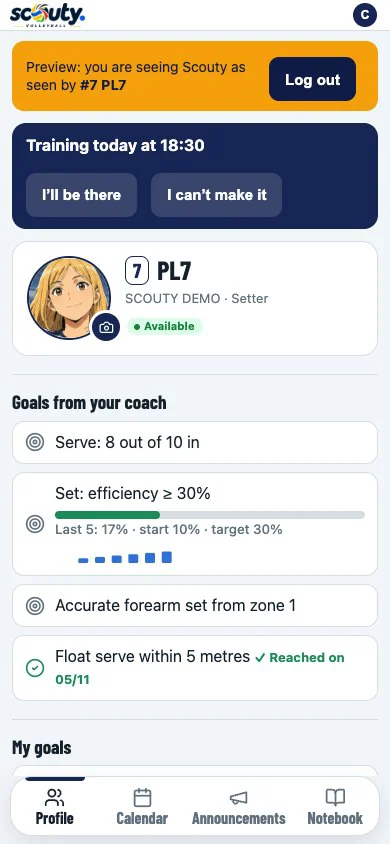
- Profile: photo, goals from the coach (with a bar when they have a number), their own goals and their numbers. At the top, if there is training today, I’ll be there / I can’t make it.
- Calendar: training and matches for the next two weeks, with I’ll be there / I can’t make it. Under recently played matches there is Who was the MVP?, with teammates’ shirt numbers: the vote can be changed and the coach sees the result on the Home.
- Announcements: the ones the coach writes on the team page.
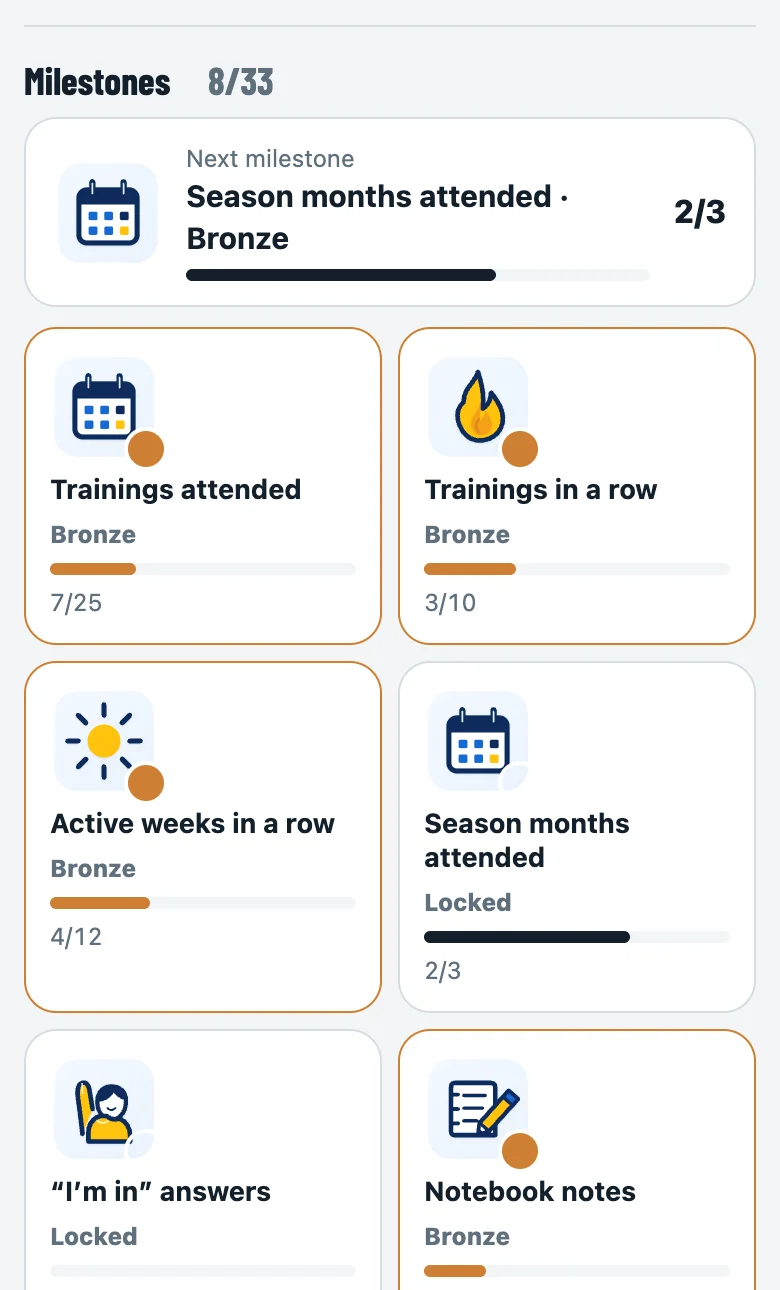
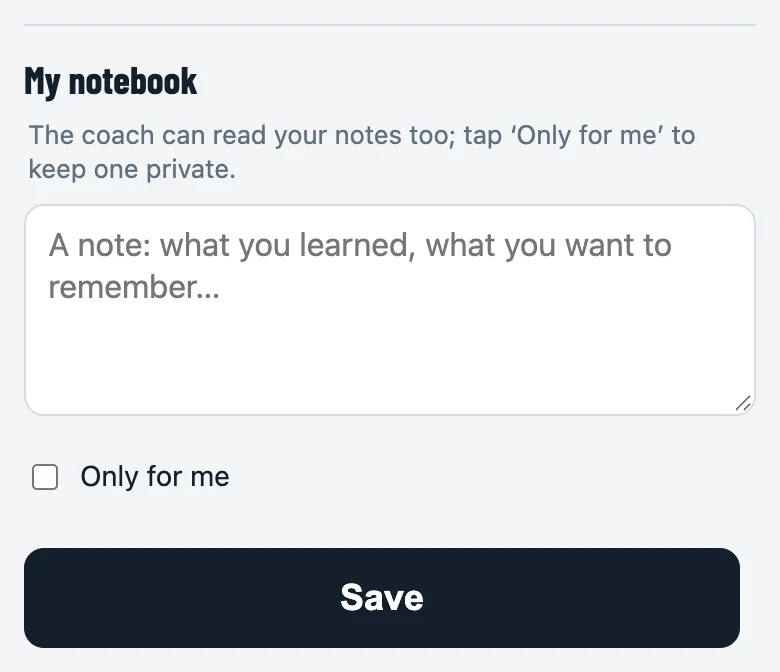
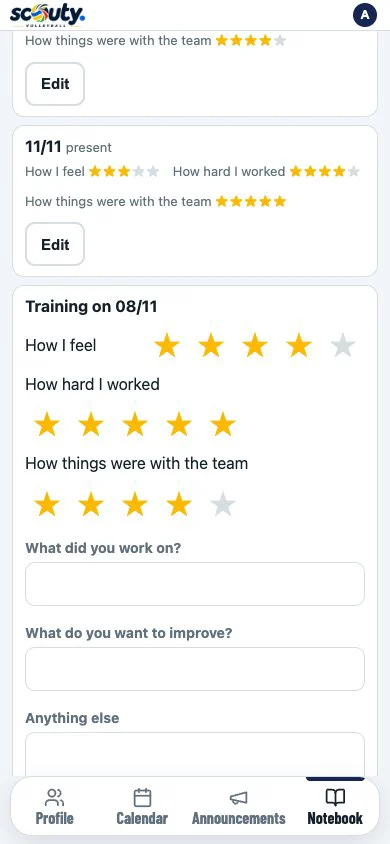
- Notebook: milestones, notes (the coach reads them too; with Only for me they stay private) and How did training go?, three star ratings: how I feel, how hard I worked, how things were with the team.
Milestones: they unlock by themselves with what the player does during the season, in 11 families with three levels (bronze, silver, gold): trainings attended, trainings in a row, active weeks in a row, season months attended, “I’m in” answers, notebook notes, goals reached, training feedback, matches played, balls played and MVP votes given. At the top is the next milestone, below the table of how to unlock them. The coach sees them on the Home (New achievements) and in the Athletes’ notebook.
The notebook in two videos
How the notebook works, from both sides. The coach sees what the players wrote, invites those without access, sets a goal, reads the shared notes and opens the profile as the player sees it. The player checks their profile, answers I’ll be there / I can’t make it, reads the announcements, writes a note, even one only for themselves, and says how training went.
Notifications
Scouty can send notifications to the phone even when the app is closed. After signing in, Turn on notifications appears at the bottom (Not now hides it for 14 days); you can also turn them on and off in My profile › Notifications on this device. What players with a notebook receive:
- the reminder for the day’s training or match, if they haven’t answered yet, with I’ll be there / I can’t make it straight from the notification;
- the coach’s announcements, to the whole team (never to a single player);
- the coach’s new goals (only the title, never the notes).
On iPhone notifications arrive only with Scouty added to the Home Screen (iOS 16.4 or later).
The stats
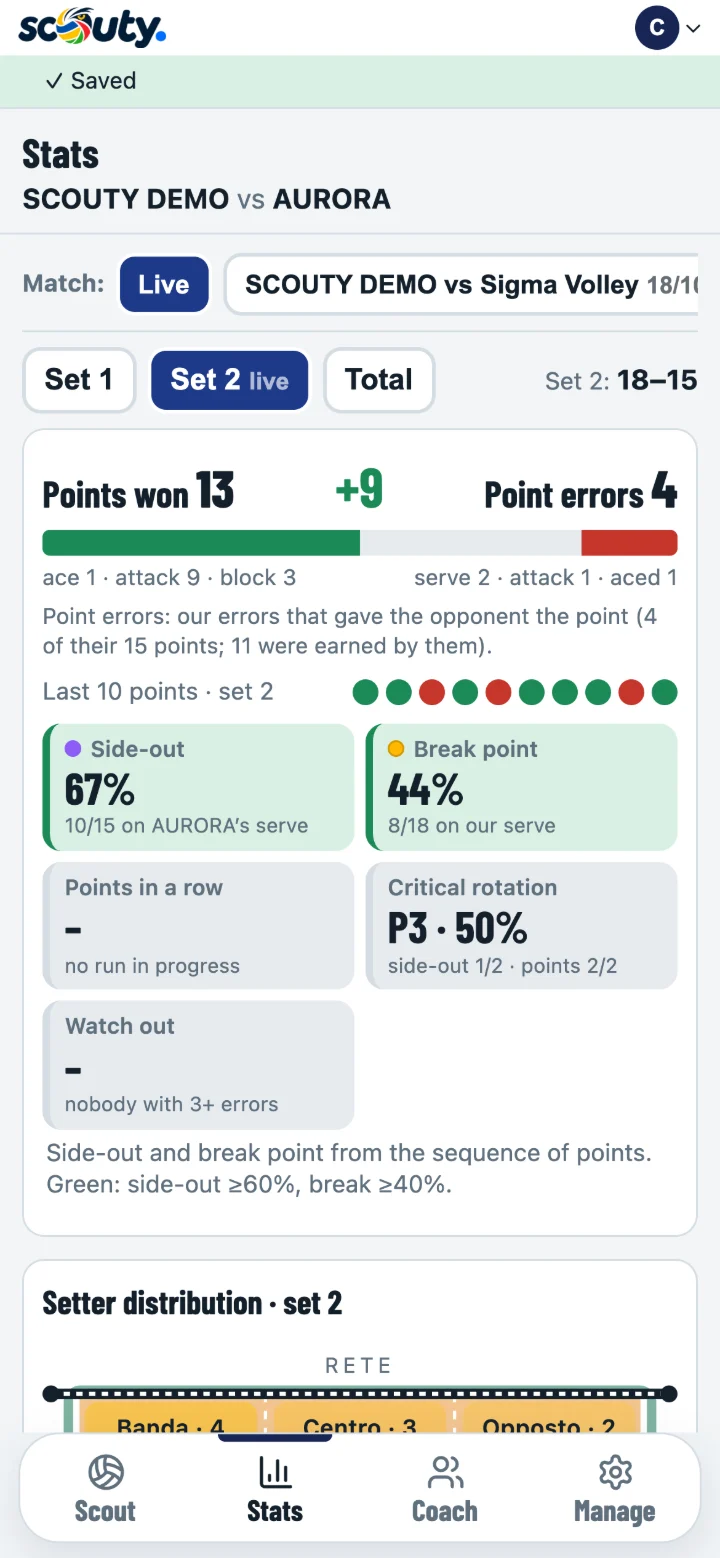
Stats has four tabs: Match (the live match or one of the last 5, then the archive), Team (summary against the targets, what to work on, trend, rotations, points, set phases, line-ups, setting, results, training and match, attendance and results; for the last 5 matches or the season), Athletes (each player’s efficiency in the main skill of their role; one tap opens their card) and Archive (all matches, month by month).
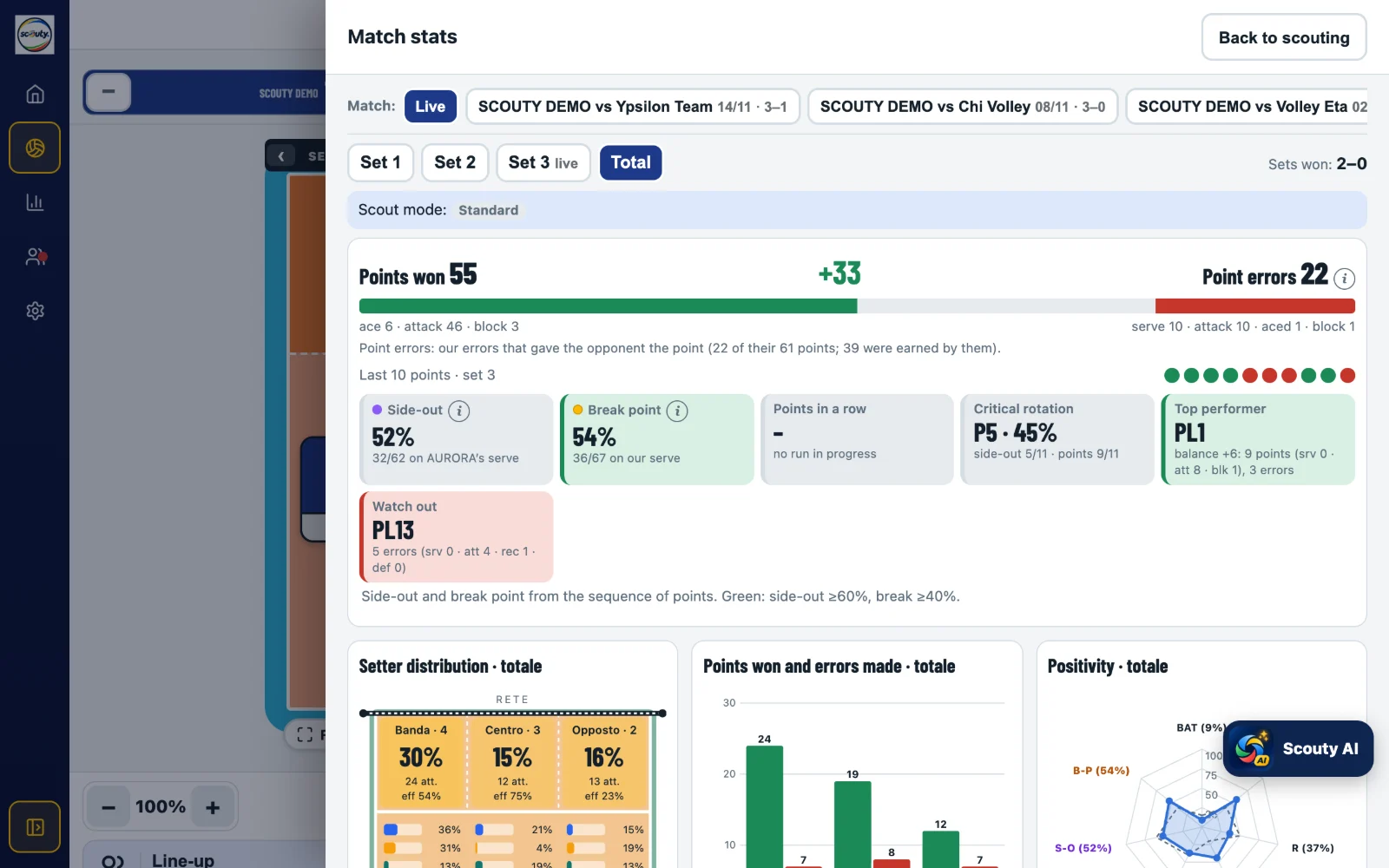
The Match tab shows the match by set or in total. At the top, what you need at the time-out:
- Points won against point errors: our points (aces, attacks, blocks) against the errors that gave the opponent points, and the last 10 points.
- Side-out: points won when they serve. Break point: points won on our serve.
- Critical rotation: the rotation (P1–P6, the setter’s position) that performs worst. Watch out: who is making the most errors.
Then Where our points come from (attack, block, ace, opponent errors, split by type when you marked them after +) and How the opponent scores (attack, ace, block, our errors and the unmarked ones): it tells you at once whether you are losing to their merit or to your own errors.
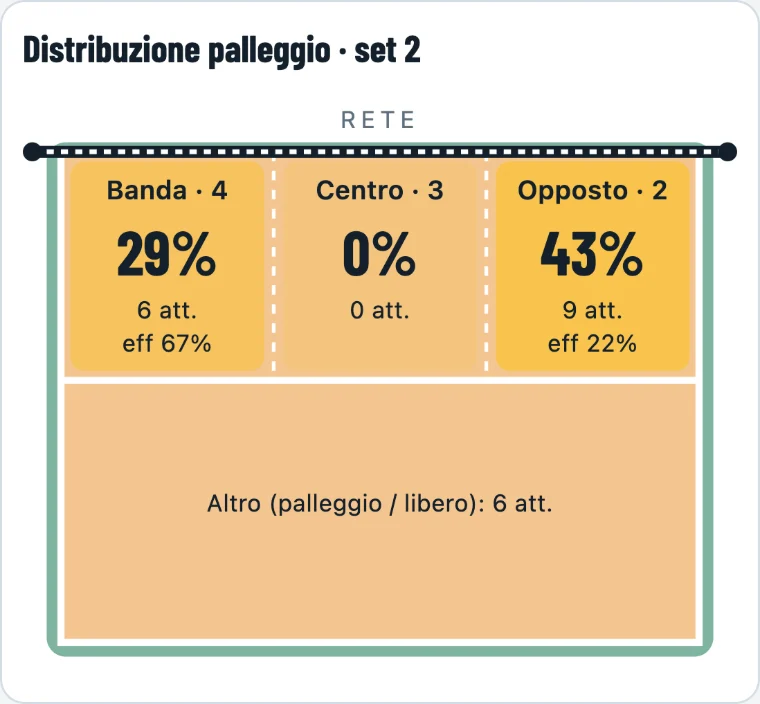
Below: setter distribution, points and errors by skill, positivity against targets, attack by position and by phase (side-out after each kind of reception, transition), rotations and the player table.
| Indicator | How it is calculated |
|---|---|
| Serve and attack efficiency | (points − errors) / attempts |
| Reception efficiency | (perfect − aced − gone over) / receptions |
| Serve positivity | (aces + positive) / serves |
| Reception positivity | (perfect + within 3 m) / receptions |
What each number means, with worked examples: volleyball stats explained.
Directions, points earned and given, reception by lane
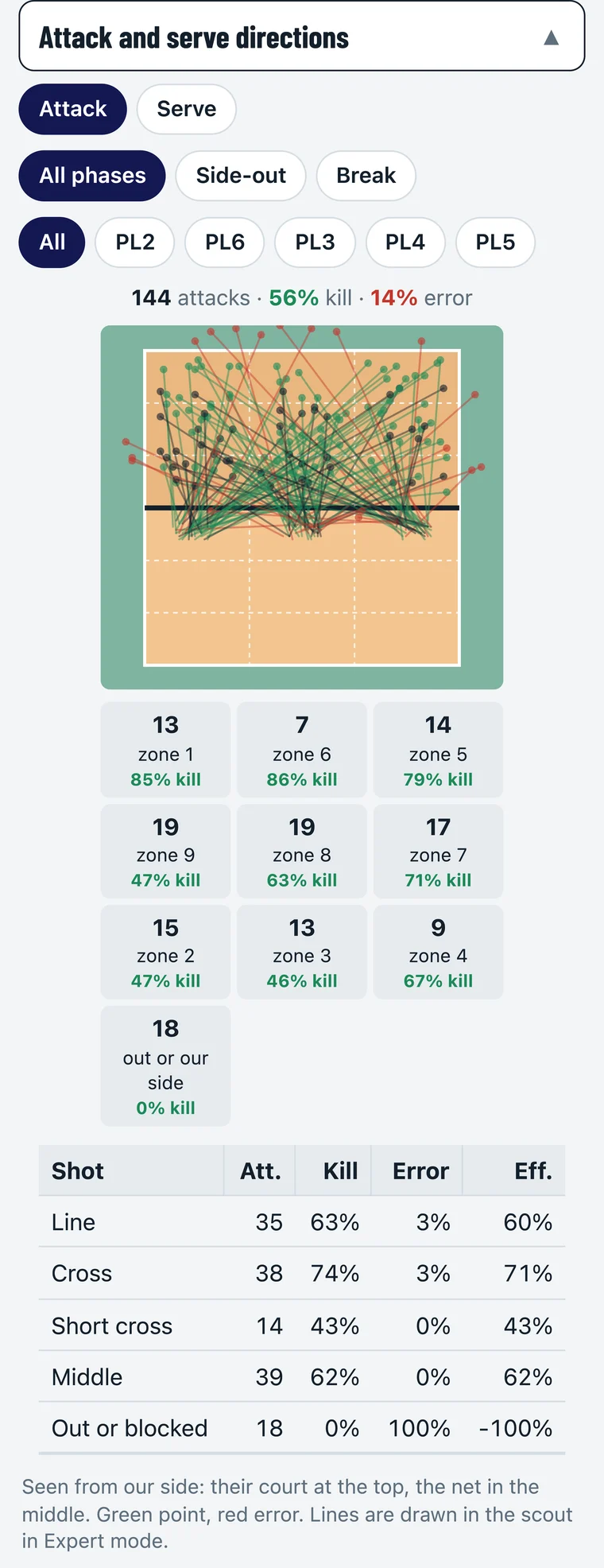
- Attack and serve directions (with Expert mode): every line on the court, green for points and red for errors, by phase (side-out, break) and by player; below, how many shots and points in each zone, and the result by shot (line, cross, short cross, middle, out or blocked).
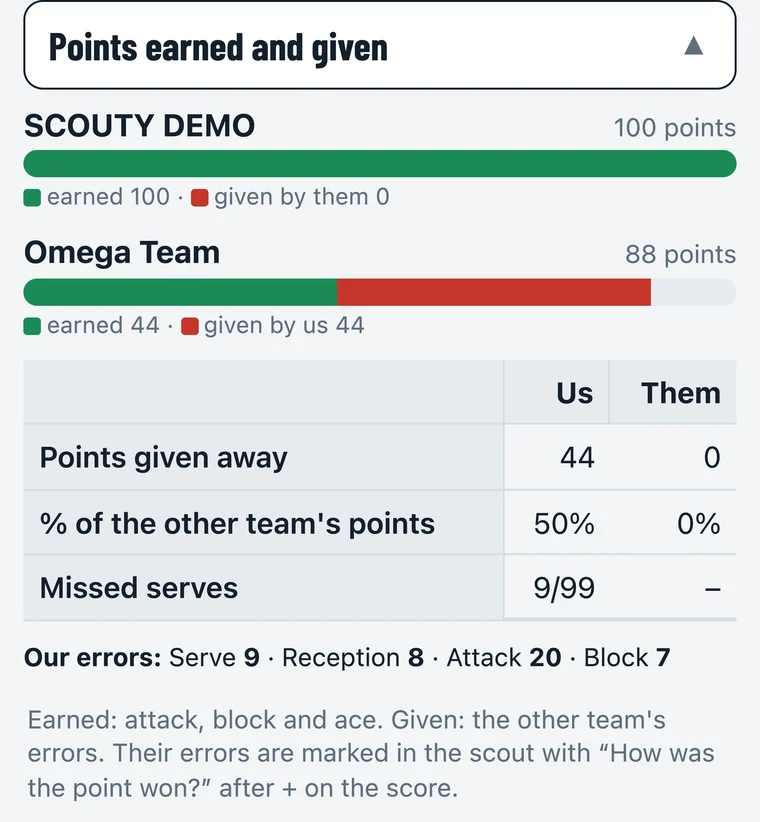
- Points earned and given: for us and for them, how many points were earned (attack, block, ace) and how many were the other team’s errors, with missed serves and our errors by skill. You mark their errors with How was the point won? after the +.
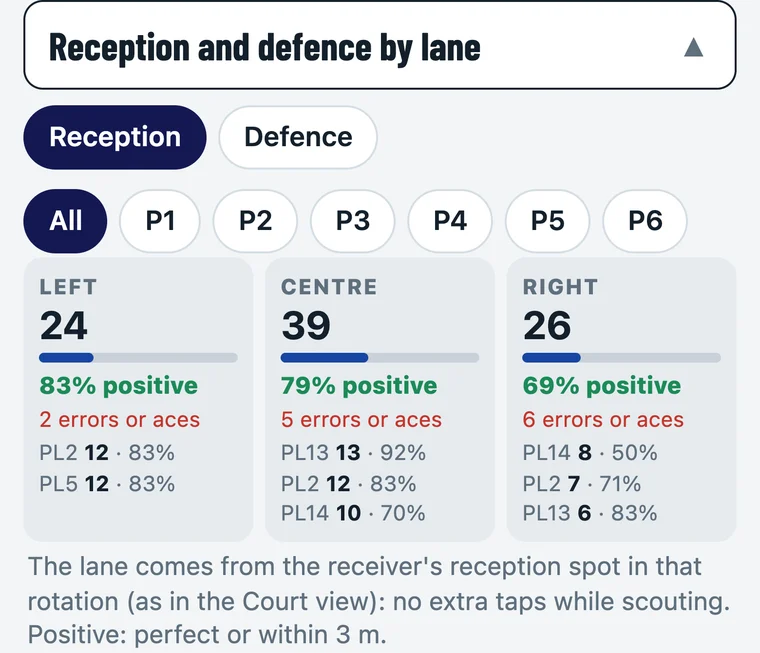
- Reception and defence by lane: left, centre and right, with how many receptions, the share of positive ones (perfect or within 3 m), the errors and who receives in each lane, also rotation by rotation, with the 0–3 average (perfect 3, within 3 m 2, outside 3 m 1, over the net or error 0). Below, reception by rotation next to side-out, with the weakest rotation in red. No extra taps: the lane comes from the spot of whoever receives (or defends) in that rotation, as in the Court view.
Points earned and given, reception by lane and directions are also in the match PDF, on a separate page after the totals.
Scouty AI (Scouty Pro)
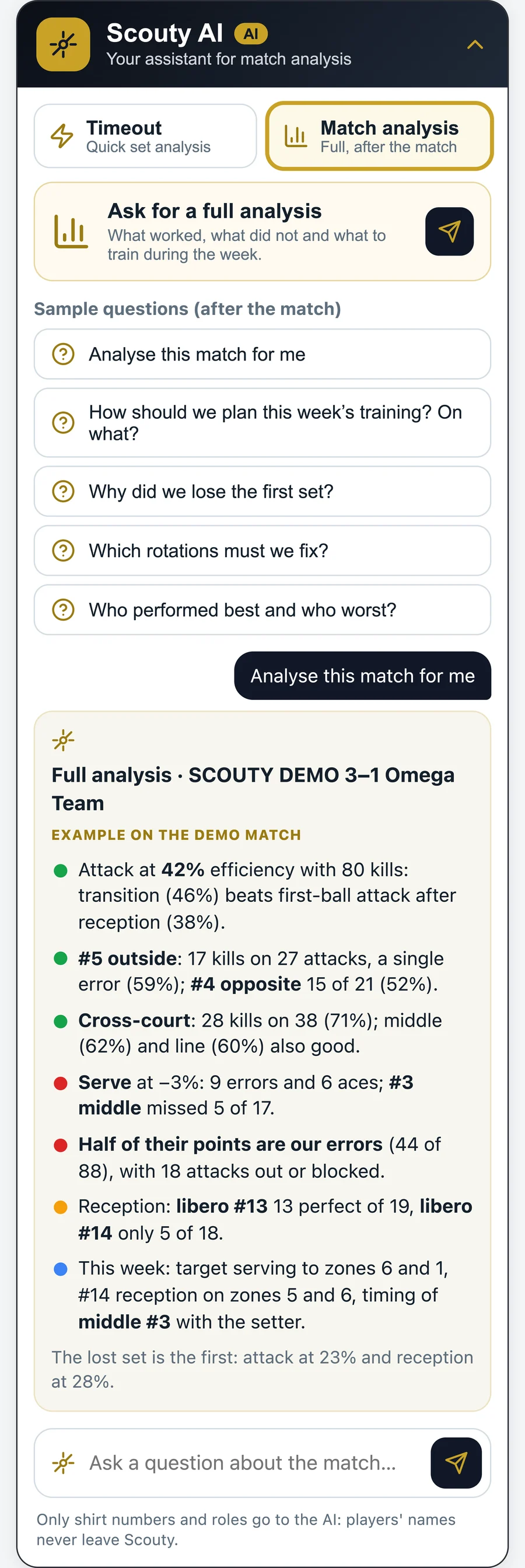
With Scouty Pro, Scouty AI is in Stats, the assistant that reads the match numbers. On a computer it sits next to the stats, on a tablet it opens over half the screen, on a phone it slides up with the button at the bottom right and keeps the stats in view; you can expand it, and closing it keeps the conversation.
- Timeout: the main problem, the number that proves it and at most three tips, to read in a few seconds, even during the match;
- Match analysis: after the match, comparison between sets, rotations, skills, errors, the opponents’ weak spots and what to train during the week;
- or ask a question in your own words (there are ready-made examples, like “How should we plan this week’s training?”).
Quick questions: there is no time to type at a time-out. Prepare up to 5 questions in Manage › Scouty AI: in Timeout they are one tap away, they stay in view during the conversation and the answer is short. You find them on all your devices.
Scouty AI only talks about this match and volleyball, and it needs a connection: without one, scouting carries on but the AI does not.
Only shirt numbers and roles go to the AI, never names. The demo has an example on the match SCOUTY DEMO vs Omega Team. What is Scouty Pro.
With Scouty Pro the AI also answers about the team and single players, up to 15 questions a day, with the Today / This month bar.
For coach and scoutman, in Stats › Team › Season stats: season stats by league, the directions and reception by lane of the whole season per player, rankings by skill, each player’s trend match by match, comparison of two matches and the full archive.
Export
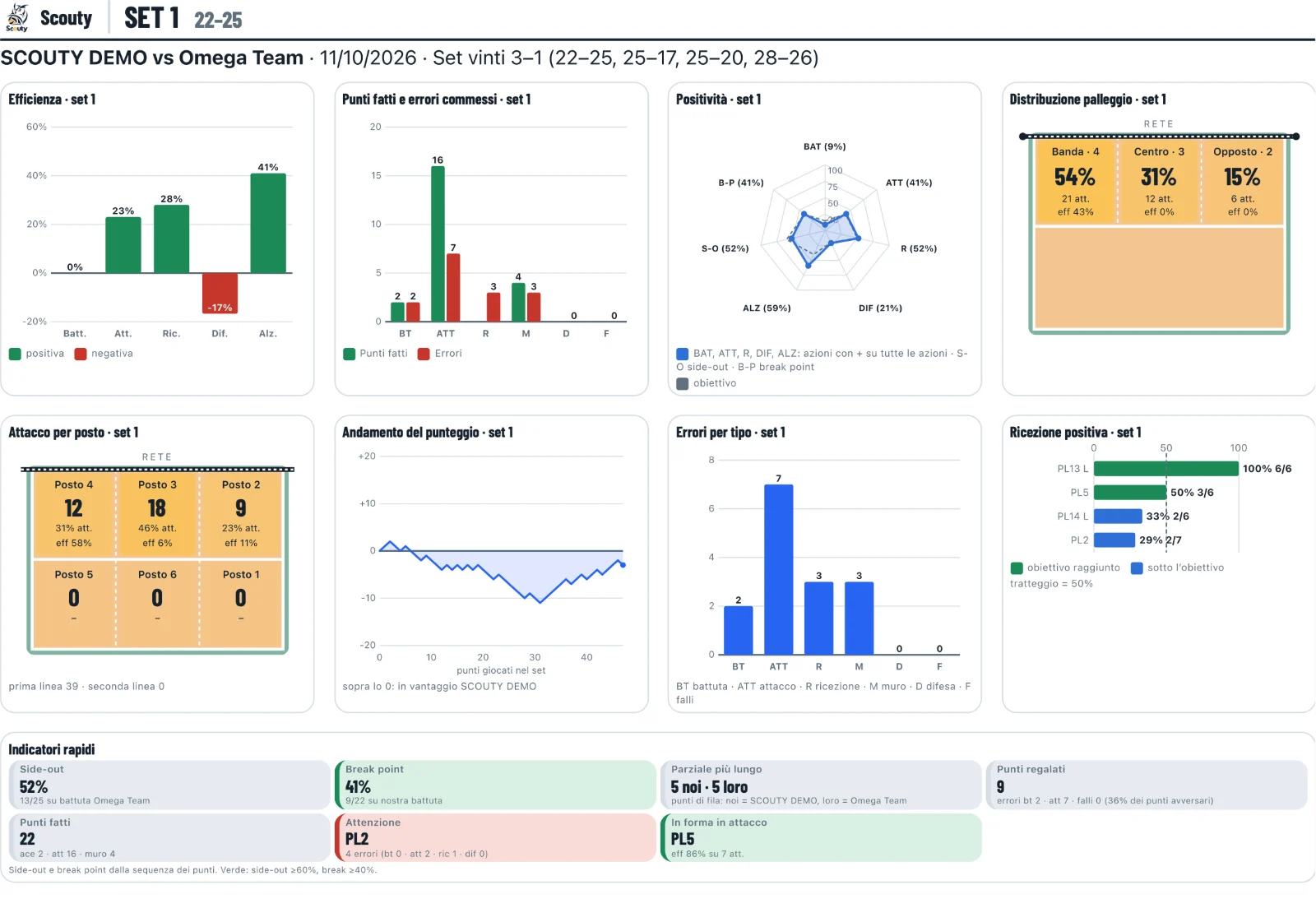
At the bottom of the Stats page: Export Excel (summary, total and one sheet per set), Export PDF (the print dialog opens: choose “Save as PDF”; two pages for every set and for the total) and Export DataVolley (.dvw file). Season stats export to Excel from Stats › Team › Season stats.
DataVolley is always yours: the match DataVolley export is there also with Free, and from Stats › Team › Season stats Download all matches gives you a single .zip file with a .dvw for each archived match, including the ones the free plan doesn’t show. When Club ends the data stay: with a renewal everything comes back.
Your preferences
Tap your initials at the top right and choose Preferences: one place to decide how Scouty looks for you. Your choices follow you on phone, tablet and computer.
- Appearance: light, dark or automatic theme, text size and language.
- Menu: on an upright tablet, the icon column on the left or the bottom bar as on a phone. The same switch is also in the same menu, on the Tablet menu row. On a phone or computer the choice stays visible but only applies on a tablet.
- Scout: the scout type every set starts with (Basic, Standard or Expert), the Live column next to the court in landscape, which numbers it shows and in which order, and the tip to turn the tablet.
- Club (or My space), only for whoever runs it: the public page and announcements to all teams. It applies to the whole club, not just to you.
On a tablet
On a tablet the menu always stays on the left as a column of icons, upright and in landscape. In landscape Expand menu, at the bottom of the column, also shows the names.
Upright you can use the bottom bar as on a phone: tap the icon at the bottom of the column. To go back to the column, tap your initials at the top right › Tablet menu › the side-bar icon, or choose Preferences in the same menu. The choice stays on your account.
In landscape, during a match, the Live column sits next to the court: the team’s numbers for the whole match, updated with every action. Team numbers only, never players’ names.
- Side-out and Break: percentage and rallies, green when you reach the target.
- Positivity: the radar of the skills, with the target dashed.
- Our errors: in the set and in the match, split into serve, attack, reception and other.
- Rotation: the one on court, with points won and lost, and the hardest one in side-out.
- Their points: how many came from our errors, from aces conceded and from their shots.
- Last points: the last six of the set, ours green and theirs red, with the current run.
Choose which blocks to see and in which order in Preferences; you can also hide the column there.
Full stats, at the top of the column, opens the match stats in a panel over the scout, with sets, tabs and charts as in Stats. Back to scouting closes it and you carry on where you were.
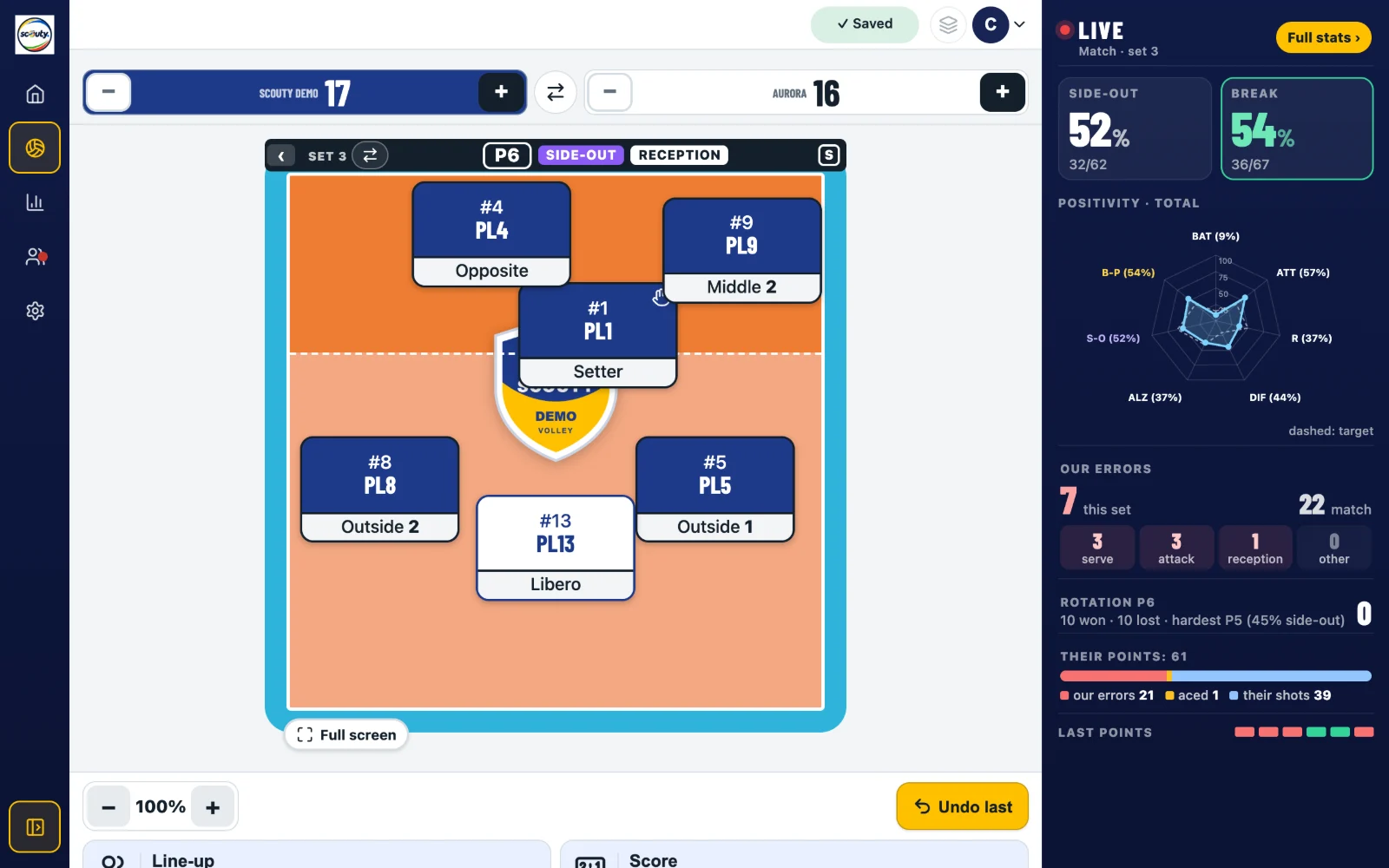
Two independent ⇄ buttons. The one on the net bar, next to SET, swaps the court halves, as you see them when the teams change ends: only the drawing changes, the data stay the same. At every new set it offers “Change ends”: one tap is enough. The one between the two scores swaps only the scoreboard. Both choices stay with the match.
With the tablet upright, once per match, Scouty suggests turning it to get the court and the Live column. The scout always starts without full screen: Full screen, below the court, is there when you want it.
On your phone as an app
Open app.scoutyapp.it and install it: on Android with Install Scouty (or “Install app” in Chrome’s menu), on iPhone with Share › Add to Home Screen. It opens full screen and, while you scout, the screen stays on.
Need help?
Write to us from Manage › Support in the app or at support@scoutyapp.it: we usually reply within a day.